 SonusCue
1. Installing
SonusCue runs on 64-bit Windows 10 and Windows 11. A Mac version is in development.
- Download SonusCue Setup from the download section and run it.
- Setup installs SonusCue and, if it's missing, Microsoft Edge WebView2 (used by Script View and YouTube cues). That step needs an internet connection; Windows 11 already has WebView2.
- Start SonusCue from the Start menu. Show files (
.sonuscue) open in SonusCue when you double-click them. - Press F4 to open Settings and choose your sound card on the Audio and Engine pages.
Shows are kept in Documents\SonusCue\Shows unless you choose another folder.
2. The main screen
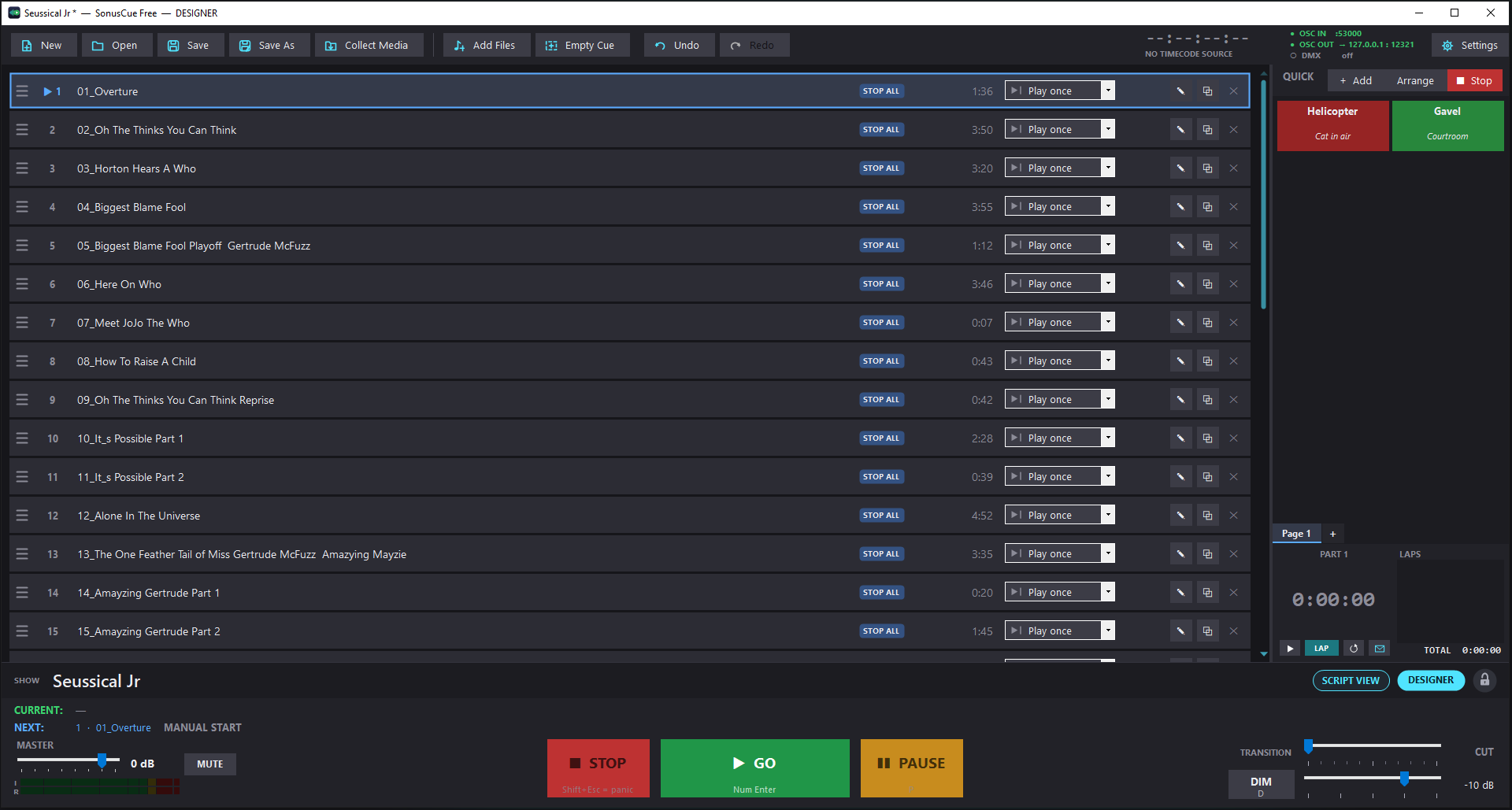
- Toolbar: New, Open (with your recent shows), Save, Save As, Add Files, Empty Cue and Settings. The lights show timecode, OSC in, OSC out and Art-Net DMX activity.
- Cue list: your cues in playing order. The playhead marks the cue the next GO plays. Playing cues are green; paused cues are amber.
- Quick hits: sound buttons that play straight away, on pages of their own.
- Transport: GO, STOP and PAUSE.
- Faders: MASTER (volume for everything) and TRANSITION TIME (the fade for STOP, PAUSE and RESUME, from cut to 10 seconds). Right-click a fader to reset it.
- Meter: output level in dBFS. Green is below −3 dB, yellow −3 to 0 dB, red at 0 dB and over. Click to clear the clip light.
- Show run time: the show timer, with laps for each part of the show.
- DESIGNER / SHOW RUNNER and the padlock, at the bottom right (see Access and lock).
3. Building a show
Adding cues
- Click Add Files, or drag audio files from File Explorer onto the cue list. MP3, WAV, M4A, AAC, FLAC, WMA and AIFF are supported.
- Video files (MP4, MOV, MKV and others) add their audio as a cue. Pro
- Paste a YouTube link with Ctrl+V to add it as a cue. Pro
- Empty Cue adds a cue with no audio. Use it for control actions such as sending show control messages, or to sketch the show and add files later.
Arranging cues
- Drag cues to reorder them. Ctrl+A selects every cue shown.
- Right-click a cue for Edit, Rename, Duplicate, Disable, Insert empty cue above, Play mode and Remove.
- Undo and redo with Ctrl+Z and Ctrl+Y.
- Right-click the cue list → Number triggers (MIDI / DMX) to give every cue a MIDI note or DMX channel in order.
Cue pages and containers Ultimate
Split a long show into pages with the tabs above the cue list. Playback still runs through every page from top to bottom. A container groups cues: GO on a container plays its first enabled cue. Right-click cues → Cue Organization to move or copy them between pages and to put them into a container.
Saving
Ctrl+S saves the show; Ctrl+Shift+S saves it under a new name. While there are unsaved changes, SonusCue keeps a recovery copy, so after a crash it can bring the show back with the playhead where it was.
4. Running a show
| Control | Key | What it does |
|---|---|---|
| GO | Space (choose others in Settings → Keys) | Plays the cue at the playhead and moves the playhead on. Resumes if paused. |
| PAUSE | Chosen in Settings → Keys | Pauses everything; press again to resume. Fades over the transition time. |
| STOP | Esc | Stops everything, including quick hits, fading over the transition time. Press again to cut. |
| PANIC | Shift+Esc | Fades everything out quickly, over the panic fade time. |
| DIM | D | Lowers everything to the DIM level until pressed again. |
Double-click a cue to jump to it and play it. Right-click a cue → Set as next cue to play it on the next GO, either once (the list then carries on from it) or permanently (it moves to just after the cue that's playing).
The show timer
SHOW RUN TIME starts with the first cue. Click the caption to name the part being timed (for example ACT 1). LAP files the current part and starts timing the next. The ✉ menu emails, copies or saves the times; email is set up in Settings → Email.
Rehearsal window Pro
Loop a section of a cue between IN and OUT (L toggles the loop), and change its speed and pitch, for example for a dance rehearsal. The web remote can drive it too.
5. The cue editor
Right-click a cue → Edit… to open its editor. Changes are kept when you click OK.
Audio
- Trim and fades: set Start, End, Fade in and Fade out in seconds, or drag them on the waveform.
- Level: the cue's volume and pan.
- Volume keyframes and pan keyframes: click the waveform to add a point, drag to move it, right-click to delete it. Keyframes follow the audio, so trimming doesn't move them.
- Preview plays the cue on the preview output (Settings → Audio), so you can audition on headphones.
Behavior
- When this cue starts: stop all other cues, stop the previous cue, or start the next cue as well.
- Duck others: lower other cues by a percentage while this one plays, and optionally quick hits too.
- Post-wait (Play next modes): when the next cue starts relative to the end of this one. Negative overlaps; positive leaves a gap.
- GO lockout: 10 means no GO for the first 10 seconds after this cue starts; −30 means no GO until 30 seconds before it ends.
- Disabled: keeps the cue in the list but skips it.
| Play mode | What happens |
|---|---|
| Play once | Plays, then stops. The playhead waits on the next cue. |
| Loop | Plays the set number of times (2 or more), then stops. |
| Loop, then next | Loops the set number of times, then starts the next cue. |
| Play next | Plays once, then starts the next cue after the post-wait. |
| Loop forever | Loops until stopped. |
| Devamp Ultimate | Loops until the next GO; GO lets the current pass play to its end, then the next cue follows. |
Effects Pro
Reverb, delay, parametric EQ, graphic EQ, compressor, pitch and speed. Click a light to switch an effect on or off; right-click a slider to reset it; double-click a value to type it. On / off keyframes switch effects at set times in the audio. A/B bypasses them all for comparison.
Output Ultimate
With a 5.1, 7.1 or 7.2 layout chosen in Settings → Audio, send the cue to a speaker pair, a single speaker, or the surround panner, which places it anywhere in the room. Multichannel files can play as recorded.
Triggers
See Triggers.
Show control Ultimate
Messages, DMX levels and timecode this cue sends. See Show control out.
Button (quick hits)
The button's colors, size in grid cells (the grid is 4 wide), text size and notes. The button shows the name, its trigger shortcuts and the notes.
6. Quick hits
Quick hits play the moment you click them and don't move the playhead. Click + Add to add sound buttons, and Arrange to move them (drag) and resize them (drag the corner); click Arrange again when you're done. Use the page tabs to keep sets of buttons apart: click + to add a page, double-click to rename it.
What happens when you click a quick hit that's already playing is set in Settings → Defaults. The stop-hits button stops every quick hit over the transition time; press it again to cut them.
7. Triggers
Triggers start, stop or panic a cue directly, from the cue editor's Triggers tab. They don't move the playhead and are ignored while the cue is disabled.
| Trigger | Set up | Notes |
|---|---|---|
| Keyboard shortcut | Triggers tab | Works while the main window is active. Keys the main screen uses can't be chosen. |
| MIDI note | Settings → MIDI (input) | Channel 0 means any channel. |
| OSC (custom address) | Settings → OSC/Network | Any address except the built-in ones starting /cue/, /quickhit/ or /playlist/. |
| Wall clock Pro | Triggers tab | Daily at the time of day, while the show is open. |
| Timecode Pro | Settings → Timecode | MTC, or LTC on an audio input (24, 25, 29.97 DF and 30 fps detected). Use current fills in the timecode arriving now. With Ultimate, a cue can listen to SonusCue's own timecode output instead. |
| DMX channel Pro | Settings → Art-Net DMX | Fires when the channel rises to 50% or more. Stop on release stops the cue when it falls again. |
Art-Net can also control the main screen (GO, STOP and so on) on channels you choose in Settings → Art-Net DMX, which also has a DMX monitor.
8. Show control out Ultimate
Setting up destinations Ultimate
- Open Settings → Show control.
- Name each place OSC messages go (for example "Lighting") with its IP address and port. Send test sends
/sonuscue/test 1there. Common ports: ETC Eos 8000, grandMA3 8000, QLab 53000, Resolume 7000, another SonusCue 53000. - Pick the MIDI output for MIDI messages.
- For DMX, tick DMX output and set the Net, Sub-Net and Universe. Leave Send to empty to broadcast on the network.
OSC and MIDI messages Ultimate
On a cue's Show control tab, add a row: On, When (it starts or it stops), To (a destination or MIDI output), the message and an optional delay in seconds. The last column shows ✓ or what's wrong. Send now (test) sends the selected row. "When it stops" also means when the cue ends by itself.
# OSC: address, then arguments (numbers → int / float, "text" → string)
/eos/cue/1/5/fire
/gma3/cmd "Go+ Executor 201"
/cue/3/play

# MIDI
NOTE 1 60 [velocity]      NOTEOFF 1 C4
PC 1 5                  CC 1 7 100
MSC GO 5 [list] [dev=1]   MSC STOP 5
HEX F0 … F7
DMX out Ultimate
The DMX section of the Show control tab sets levels over Art-Net. Each row has On, When, Channels (1, 1-4 or 1-4, 10), Level (0–255, or a percentage such as 50%) and Fade in seconds (0 = snap).
Timecode out Ultimate
Tick "Send timecode while this cue plays" and enter the start timecode (HH:MM:SS:FF). The timecode output jumps to that time when the cue starts and runs with it, following pauses. It stops at the optional "stop at" time, or when the cue ends.
On an empty cue, the cue's length follows the start-to-stop range, so one empty cue can run timecode for a whole show. Give the other cues timecode triggers that listen to "own output (loopback)". MTC or LTC, the frame rate and the outputs are set in Settings → Timecode.
9. Script View Ultimate
Script View shows the script with your cues on it. Open it with the SCRIPT VIEW button or F12; F12 again goes back to the cue list. It stays loaded, so switching is instant.
Loading the script
Script View shows PDFs, pictures and text files. A web address can be saved as a PDF and loaded.
Cue buttons
In DESIGNER, drag a cue or quick hit from the cue list onto the script. The button lands centered where you drop it. Press it during the show to fire the cue.
Notes
Highlights, pen marks and notes are kept in note sets. The master set is saved in the show file and changed in DESIGNER only; each operator can keep a set of their own, starting from a copy of the master.
Tabs, Find and scrolling
- Tabs mark places in the script (an act, a scene). The tabs rail can be resized.
- Ctrl+F finds text in the script.
- Scrolling: follow moves to the next cue; auto scrolls with the music at a tempo saved with each cue. Numpad * and / make it faster and slower. Double-click shows the cue that's playing.
The console
GO, STOP, PAUSE and PANIC, the master and transition faders, the meter, MUTE and DIM work in Script View as they do on the main screen.
10. Web remote
Any phone or tablet on the same network opens SonusCue's remote in its web browser; there is nothing to install. It can GO, STOP, PAUSE and DIM, set the master and transition, jump to any cue, fire quick hits, run the show timer and drive the rehearsal window Pro. It can't change the show.
- Open Settings → Remote and tick Turn on the web remote. Note the 6-digit PIN; New PIN makes a new one.
- On the phone, open the address shown under "On the phone, open:" and enter the PIN.
- The first time, Windows may ask to let SonusCue through the firewall. Allow it on private networks.
A new PIN logs out every phone. On a shared phone, use the remote's log-out button or untick "Remember on this device".
11. Access and lock
DESIGNER and SHOW RUNNER
DESIGNER can build and change everything: cues, quick hits, pages, settings, undo and redo.
SHOW RUNNER is for running the show: GO, PAUSE, STOP and DIM, the faders, firing and stopping quick hits, opening shows, double-clicking a cue to play it, and Set as next cue (once). Nothing else can be changed and Settings is hidden.
Switch with DESIGNER / SHOW RUNNER at the bottom right. A designer password (Settings → Access) protects the switch back to DESIGNER. SonusCue starts in the level it was closed in.
Console lock
Lock with the padlock at the bottom right or Scroll Lock. While locked, the window is dimmed and takes no keys or clicks, and SonusCue can't be closed; cues already running carry on. It stays locked through a restart. Press Scroll Lock to bring up the PIN box. Settings → Access can also make the lock ignore OSC, MIDI, DMX and the web remote.
12. Settings
Press F4 or click Settings (DESIGNER only).
| Page | What's on it |
|---|---|
| Audio | Output device, preview output, speaker layout (surround is Ultimate). |
| Engine | Driver (WaveOut, WASAPI shared or exclusive, ASIO), buffer size, the log folder. |
| Defaults | Settings for new cues and quick hits; waveforms in the rows. |
| Access | User level, designer password, console lock PIN. |
| The account used to email show times. | |
| Remote | The web remote and its PIN. |
| Keys | GO and PAUSE keys, panic fade time, Esc and MUTE options. |
| MIDI | MIDI input for note triggers, with an activity monitor. |
| OSC/Network | OSC control input and the list of OSC commands. |
| OSC Output | Status sent to other devices (several "host:port" separated by commas). |
| Show control | OSC destinations, MIDI output and DMX output for cue messages. Ultimate |
| Art-Net DMX | DMX input universe, main screen controls and the DMX monitor. Pro |
| Timecode | Timecode input (MTC, LTC) Pro and output Ultimate. |
| Media | YouTube account, ffmpeg for unusual video files, the media folder. Pro |
| Tools | Export and import cues, match loudest peaks. Ultimate |
| License | Activate your key (online or offline), deactivate this computer, and the link to your account. |
13. Editions and license
SonusCue Free has no time limit. Pro and Ultimate are unlocked with a license key; see the edition comparison. A Pro or Ultimate license includes free minor version upgrades for one year from purchase. Shows open in every edition and play what that edition can, without changing the file.
Activating
A license key can be active on two computers at a time, for example a laptop and the show computer. Activating needs an internet connection once; after that SonusCue works offline.
- Open Settings → License.
- Paste the whole key (it starts with
SC1-) and click Activate.
If the key is already active on two computers, SonusCue lists them. Deactivate one of them first, or release it in your account.
A show computer that's never online
- In Settings → License, paste the key and click Offline activation. Save the request file and copy it to a USB drive.
- On any device with internet (a phone works), open the offline activation page shown in that window, upload the request file and download the activation file.
- Copy the activation file to the show computer and click Load activation file.
Staying activated
When the computer is online, SonusCue quietly checks in with the license server about once a day. A computer kept offline works for 180 days after its last check-in. After that, SonusCue asks at start-up to connect once or use offline activation again, and keeps working for another 60 days. Only after that does it run as the free edition, until it checks in.
Your account
Your account on the SonusCue license site shows every license bought with your email address: the license key, and the computers each one is active on. There's no password.
- Open your account (there's also a link in Settings → License).
- Enter the email address you bought SonusCue with. We email you a sign-in link that works once, for 15 minutes.
- Open the link and click Sign in. That browser stays signed in for two weeks, or until you sign out.
Lost your key? Sign in to your account to copy it again. If you have your key but no longer use that email address, the account page also lets you look up your computers with the key instead.
Moving to another computer
- On the old computer: Settings → License → Deactivate this computer. The seat is free straight away, and that computer goes back to the free edition.
- If the old computer is gone (replaced, broken or reinstalled): sign in to your account and click Release next to that computer.
What activation sends
Your license key, an anonymous ID for the computer (a code made from Windows' installation ID; it doesn't identify you), the computer's name (so you can tell your computers apart in your account) and the SonusCue version. Nothing else.
14. Keyboard shortcuts
| Key | Action |
|---|---|
| Space | GO (other GO keys can be chosen in Settings → Keys) |
| Your choice | PAUSE / resume (P, a numpad key, Pause/Break or Backspace) |
| Esc | Stop everything |
| Shift+Esc | Panic: fade everything out |
| D | DIM |
| F4 | Settings |
| F12 | Script View on / off Ultimate |
| Scroll Lock | Lock the console / show the PIN box |
| Ctrl+N / O / S | New / open / save show |
| Ctrl+Shift+S | Save as |
| Ctrl+Z / Ctrl+Y | Undo / redo |
| Ctrl+A | Select all cues |
| Ctrl+V | Paste files or a YouTube link as cues |
| Ctrl+F | Find in the script (Script View) |
15. OSC commands
Send these to SonusCue's OSC port (Settings → OSC/Network). The full list is on that page.
| Address | Action |
|---|---|
/playlist/start (or /go) | GO |
/playlist/stop | Stop everything |
/playlist/pause, /playlist/resume | Pause, resume |
/playlist/panic | Panic fade |
/playlist/stophits | Stop every quick hit |
/playlist/next, /playlist/previous | Move the playhead |
/playlist/restart | Stop and go back to cue 1 |
/playlist/volume <dB> | Set the master volume |
/playlist/transition <0–1.0> | Transition time, 0–10 s |
/playlist/dim, /playlist/mute | Toggle DIM, MUTE (or add 1 / 0) |
/playlist/timer/lap, /reset | Show timer |
/playlist/page <n> Ultimate | Show cue page n |
/timecode/start, /stop, /locate Ultimate | Timecode output |
/script/page/next, /script/tab/<name> Ultimate | Script View pages and tabs |
16. Troubleshooting
No sound
- Check the output device in Settings → Audio, and that MUTE is off and the master isn't down.
- A red warning means the device was lost. SonusCue keeps the show running silently and reconnects every two seconds.
Clicks or crackles
- Raise the buffer in Settings → Engine a step at a time (smaller means less delay; larger is safer).
- Try another driver: WASAPI shared works with everything; ASIO gives the lowest latency on interfaces that have it.
MIDI, OSC or DMX not arriving
- Watch the lights on the toolbar and the activity monitors in Settings (MIDI, Art-Net DMX).
- For OSC and Art-Net, both devices must be on the same network, and Windows must allow SonusCue through the firewall.
- Check that the console lock isn't set to ignore remote input.
Timecode not decoding
For LTC, check the input channel in Settings → Timecode. If the level bar barely moves, turn the input up.
Still stuck
Open the log folder (Settings → Engine) and send the latest log to support.